We are thrilled to roll out our most ambitious feature set yet: Multiplayer Matchmaking and a retro Messenger client, directly integrated into the Solitaire Online Suite! Here is everything you need to know about these new features and how they work.
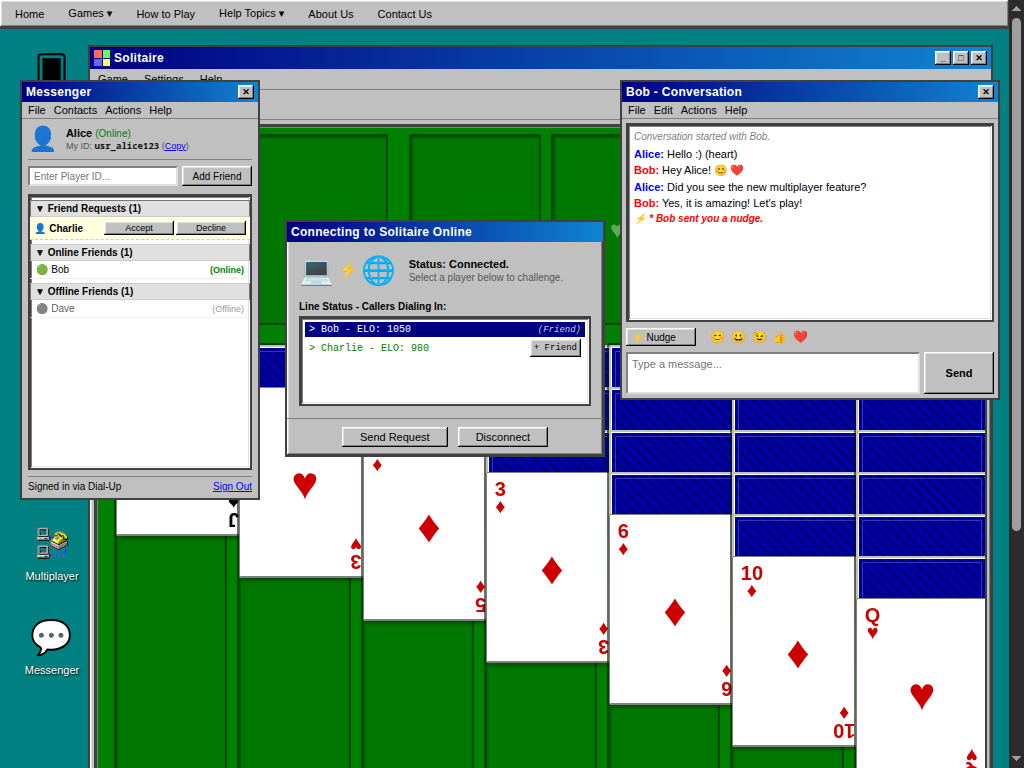
1. Multiplayer Matchmaking: By double-clicking the new 📞 Multiplayer icon on the desktop, you can launch the connections directory. Double-click the Solitaire Online Connection to establish a session. You'll enter a real-time lobby where you can see all online players. Since rank limitations have been removed, you can send direct game requests to any player on the list. Once they accept, your games sync and you can compete in real-time!
2. Retro Messenger Client: Double-click the 💬 Messenger icon to open a classic Windows 95 style messaging window. Sign in with your display name to start building your contacts list. You can add friends manually using their unique Player IDs or click the + Friend button next to any name in the multiplayer lobby. Messenger supports categorized contact lists (Friend Requests, Online, Offline) to keep you organized.
3. Chat, Nudges, and Retro Sounds: Double-clicking any online friend opens a private conversation. Type messages to chat in real-time, complete with automatic legacy emoticons (e.g. :) becomes 😊 and (heart) becomes ❤️). Feeling ignored? Click the Nudge button to shake your friend's chat window with a classic vibration effect and a synthesized low buzzer. We've also built a custom sound engine using the Web Audio API to play classic notification chime tones for sign-ins, messages, and nudges.
Walkthrough: How to get started
1. Open two browser windows or tabs on your computer and open Messenger on both.
2. Double-click the Multiplayer icon on your desktop, and click Connect in the dialog box to dial in. You'll see both names appear in the online lobby.
3. In the Multiplayer lobby, click the + Friend button next to the other player's name. A friend request will instantly appear in their Messenger window.
4. Click Accept on the receiving side, and you will both be added to each other's Online Friends list. You can now double-click their name to open a chat window and start messaging, send nudges, or request a head-to-head match!
Disconnecting from Multiplayer will automatically sign you out of Messenger and set your status to Offline. Dial in today and challenge your friends!
🂱 Ready to Test Your Card Skills?
Experience authentic Windows 95 card gaming directly in your browser with zero downloads, zero ads, and 100% free offline PWA play. Try our classic Klondike Solitaire, master the open cells in FreeCell Solitaire, or challenge friends in Multiplayer Solitaire with MSN Chat!